
Priva Integration
Welcome to Cannavigia Priva Integration, a seamless way to connect your Priva account with Cannavigia and enhance your environmental monitoring experience.
Connect Priva account
Follow the steps below to set up your integration and capture valuable data from Priva devices.
Go to Settings → Integrations.
.png?inst-v=a05d15a2-45dd-45f6-9cac-9c8b05d15e1d)
Connect Priva Account
In the Priva widget, click "Connect Account" and fill in your Priva credentials. If you do not have this information, please contact your Priva account manager to obtain the necessary data.%20(6).png?inst-v=a05d15a2-45dd-45f6-9cac-9c8b05d15e1d)
Automatic Device Creation
The system will fetch Priva devices and automatically create them. This process may take some time, based on the number of registered Priva devices.%20(7).png?inst-v=a05d15a2-45dd-45f6-9cac-9c8b05d15e1d)
Review Devices:
After all devices are created, the system will display a success message and suggest reviewing the devices. You can do this immediately or return later by opening Facility → IoT Devices → Unassigned Devices tab.%20(10).png?inst-v=a05d15a2-45dd-45f6-9cac-9c8b05d15e1d)
Assign Devices to Areas:
On the list of Unassigned Devices, click the edit button for each device.
In the modal window, select the corresponding area for each device.
Review measurements, and if necessary, choose the correct options.
Save changes.
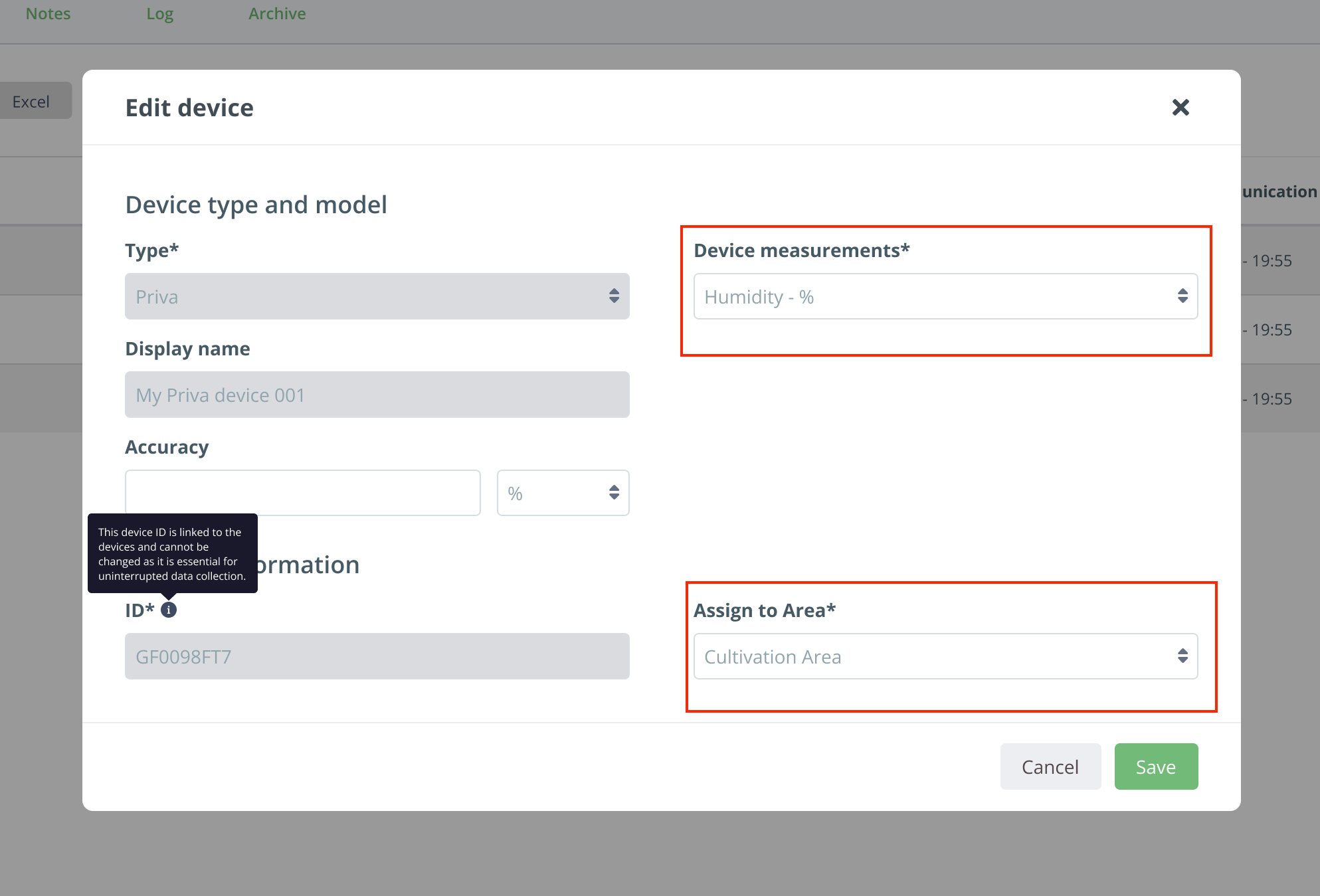

Cannavigia automatically defines device measurements based on units received from Priva. However, please be aware that in certain cases, different measurements may use the same units. To ensure the system receives accurate measurements, we recommend customers verify the data.
Multiple devices assignment
As the number of devices can be substantial, the system provides a feature for assigning multiple devices to a single area:Select a device from the list by clicking on the corresponding row in the table.
Click on the "Move" button that will appear after making the selection.
.png?inst-v=a05d15a2-45dd-45f6-9cac-9c8b05d15e1d)
Choose the target area from the dropdown menu.
.png?inst-v=a05d15a2-45dd-45f6-9cac-9c8b05d15e1d)
Apply the changes by clicking on the “Save” button
Data Integration
Once all devices are assigned, data will appear under IoT Devices → IoT Data and will be shown under linked areas, batches, and corresponding reports.Congratulations!
You've successfully completed your integration setup. The system will now automatically fetch data for all registered devices and display it in the Cannavigia system.
Disconnect Priva Account
If needed, disconnect Priva accounts:
Go to Settings → Integrations.
Find the Priva integration, click on the three dots, and choose "Disconnect."
%20(12).png?inst-v=a05d15a2-45dd-45f6-9cac-9c8b05d15e1d)
Confirm the disconnection in the modal window.
%20(11).png?inst-v=a05d15a2-45dd-45f6-9cac-9c8b05d15e1d)
The system will begin archiving Priva devices; depending on the number of registered devices, this process may take some time.
Once archived, the connection status will change to "Disconnected," and the system will stop receiving data from Priva.
Reconnect Priva Account
Reconnect by following the initial connection flow. The system will restore archived devices and add new ones from Priva.